The first week arrives as five different PDFs
Every instructor publishes a syllabus their own way. One hands you a table, another buries the exam dates in a paragraph halfway down, a third spreads deadlines across twelve pages of calendar. Copying all of that by hand is why most planners get abandoned by week six: the work of keeping it current costs more than the problem it solves.
Semora targets that specific moment. Instead of handing you an empty list to fill in, it reads the document that already contains your whole term and turns it into a semester you can check over in a few minutes.
One scan, and everything else is downstream
Semora is one chain, not a folder of separate tools. The scan is the input step and every other feature reads what the scan produced. That is why the feature list looks long while the actual work is short: you handle each syllabus once, in about the time it takes to photograph five pages, and the deadlines, class meeting blocks, grade weights and letter-grade cutoffs that come out of it become the raw material for the calendar, the grade math, the planner, the workload analysis, the flashcards and the tutor.
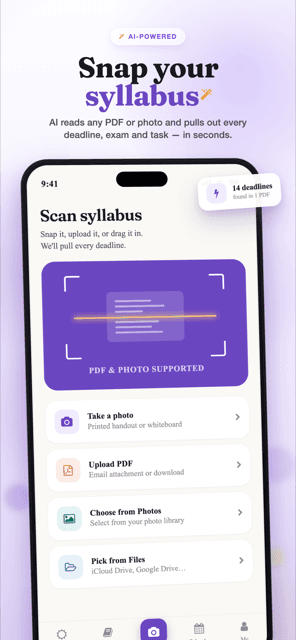
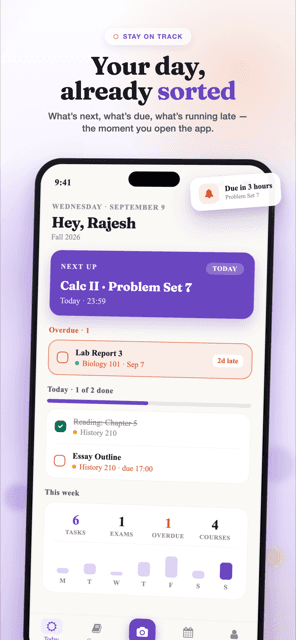
The chain runs in a specific order. The scanner extracts the course and instructor, the meeting blocks with days and rooms, the semester start and end, the letter-grade scale, and every assignment, quiz, exam, project and reading it can find with a due date, a due time, a percentage weight and a confidence score. On a course you are creating for the first time, the course record, its meeting times and its grading scale are written for you straight away. Only the deadlines wait, on a review screen where you edit, deselect and approve them. Approve, and they appear in Today and in the Calendar tab. Enter a score against any of them and your weighted average updates immediately, because the weights already came off the syllabus rather than out of your memory.
A re-scan behaves differently on purpose, and it is worth knowing before your professor posts version two. Scanning a revised syllabus into a course you already have merges the deadlines in, but it will not rewrite the schedule you have already touched: the meeting and office-hour rows are written on first creation only, and the grading scale is replaced only if you have left it on the default. So a revision that moves the lecture to a new room, or swaps 30 percent midterm for 25, lands as deadlines and nothing else — update the meeting times or the scale by hand on the course screen. It is a deliberate trade: the app would rather keep your corrections than overwrite them with a fresh guess.
Everything above that layer is analysis of those same rows. The workload engine scores each dated task as its grade weight multiplied by a prep-effort factor (an exam counts three times, a project 2.5, a quiz 1.5, an assignment 1.2, a reading 1) so a week holding two exams reads as heavy even when your professor never printed a percentage next to them. Smart Plan takes the same tasks and lays study sessions across a fourteen-day horizon, working around the class times the scan already knows about. Academic Risk watches three specific things: a grade trending down, work that has gone missing, and a week that is overloaded. Flashcards and the AI Tutor read the same syllabus text plus any lecture notes you attach, so there is nothing to re-upload.
None of this makes the scanner compulsory. You can create a course by hand and add its deadlines, subtasks and grades yourself, and the grade maths, Calendar, Today and reminders all behave identically on hand-entered data. The scan is a shortcut past the tedious part, not an entry requirement — it just happens to matter most in week one, when the tedious part is four syllabi at once.
The practical consequence is worth stating plainly. Every planning and study feature is only as good as how much of your semester is actually in the app. Two half-entered courses give Smart Plan and the Workload dashboard almost nothing to reason about. Four scanned courses with real weights and a few graded items make both sharp within a week. Scan first, grade as you go, and the rest of the product has something to work with.
- Scan: course, instructor, meeting days, times and rooms, term dates, the letter-grade scale, and every dated item with weight and confidence.
- Re-scan: a revised syllabus merges into the course you already have and brings the deadlines with it. Meeting times are never overwritten, and the grading scale is only replaced if you have not edited it — schedule changes stay a manual edit.
- Review: only deadlines need your approval. Items under 0.8 confidence are badged for verification, dates outside the term are flagged, and undated items sit deselected in a "Needs a date" group.
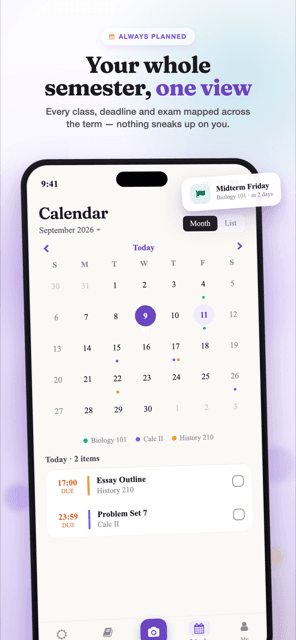
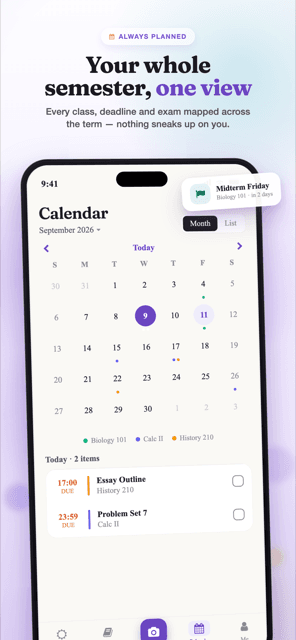
- Track: Today surfaces what is next and what is overdue; Calendar shows the term in month or list view, color-coded per course.
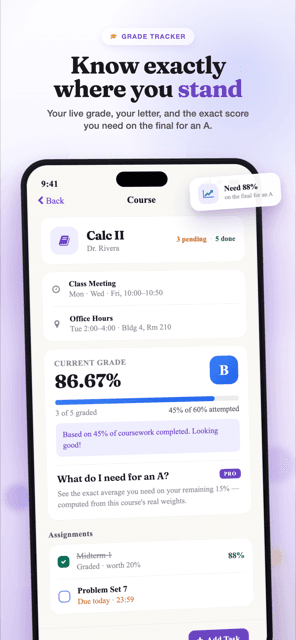
- Grade: a weighted average that reflects only what has been graded so far, with extra credit adding to the numerator without inflating the denominator.
- Plan: Workload names the crunch weeks, Smart Plan fills the days, Academic Risk says what is slipping and what to do first.
- Study: flashcards and the tutor are scoped to a course you have already scanned.
What changes about your week
The difference is not a longer feature list. It is how much manual work disappears.
- Before: copying every date by hand out of five syllabi. After: one photo per course and a review screen.
- Before: a spreadsheet to work out where you stand. After: enter a score and the weighted average recalculates itself.
- Before: finding out a week is overloaded once you are in it. After: the Workload dashboard flags it in advance.
- Before: reminders you set yourself, when you remember. After: they are scheduled the moment you approve the dates.
- Before: three apps for calendar, grades and study. After: one account where all of it reads the same data.
What one AI action and one hand-added course actually cover
The free tier is one AI action for the lifetime of the account, unlimited classes synced free from Canvas, Blackboard or Moodle plus one course you add by hand, and one semester for the account. The three numbers are not enforced identically, and the difference is worth a sentence. The AI-action limit is checked in three places: in the app, in the parsing function on the server before any paid extraction runs, and again by a database trigger. The course limit and the semester limit are checked in two: in the app, and by a BEFORE INSERT trigger on the database. Either way they behave the same on iPhone, iPad and the web app, and none of them can be talked around by a client that decides to skip a check.
Run the week-one math. A standard full-time load in the US is four or five courses, and free covers one AI action, so the honest version is that free shows you the extraction on the course you care most about rather than setting the whole term up for you. Spend it where it saves the most: the syllabus you least want to retype, the lecture you most want written down, or the document you most want turned into notes. The counter is a lifetime one and nothing resets it, so a syllabus your professor revises in October is a Pro job rather than a free one. Where free is generous is the other direction: photo scans are counted per submission, so five pages captured in a single pass is one action, not five.
AI actions and courses are separate limits, and knowing that saves you money. Re-scanning a syllabus for a course you already have merges into that existing course (matched by course code, or by exact name when the syllabus has no code) so it costs an action but not a course slot. What that merge will not do is overwrite the schedule: the deadlines come through, the meeting times stay as you left them, and the grading scale is only refreshed if it is still the untouched default. Courses you type in yourself cost no AI action at all, and the course you add yourself is counted the same way whether it arrives by scan, by hand, or by joining the Course Space a classmate is hosting. Classes synced from Canvas are the exception: they are never counted against it.
One more limit belongs on an honest map, and it is the one people meet late: a free account gets one semester, total. Not one live at a time with a fresh one each term, one. That is why the one manual course you get does not refresh in January; on free there is no second semester to start. Classes synced from Canvas are the exception that makes this liveable — they are free, unlimited, and never counted. Deleting the finished semester from the Courses tab is the only way to free the slot, and the delete cascades: that semester's courses, deadlines, grades and history go with it, and nothing is archived. If you want last spring still readable next spring, that is what unlimited semesters on Pro are for.
- 1 AI action for the lifetime of the account — a syllabus scan, a lecture recording or a document turned into notes. Five photographed pages in one submission counts as one.
- One course you add by hand — for the account, not per term, because free is one semester. Classes synced from Canvas are unlimited and never counted, so a full course load still fits when it comes from Canvas.
- Re-scanning a course you already have merges into it: an AI action spent, a course slot kept, your schedule edits untouched.
- Deadlines, tasks and subtasks are never capped. Add as many as you want on free.
- Grade tracking with weighted averages and your semester GPA are free, on every course you have.
- Joining a Course Space a classmate hosts is free — note that the course it imports takes one of your four slots.
- One semester total on free; unlimited semesters and courses on Pro, with no cap on scanning.
Where the Pro line actually falls
The clean way to describe the split: free is enough to know what is due and where you stand. Pro is for deciding what to do about it, plus the connective tissue to other platforms, other people and other calendars. Nothing in the free tier expires or quietly degrades — your free AI action sits there until you decide what to spend it on, and the free features stay on for as long as you keep using the app.
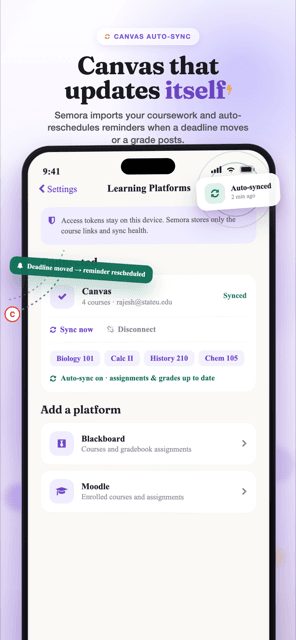
Two boundaries get misreported often enough to be worth stating directly. First, connecting a learning platform — Canvas, Blackboard or Moodle — is free on every plan. Moodle connects the way Canvas does, from a calendar link you copy out of Moodle yourself, with nothing for an administrator to enable. For Canvas and Blackboard, what decides whether it works is your school's policy, not ours. And the paste route stays useful for anything Canvas does not carry: open the assignments page, select the text, and paste it into the scanner's paste box on the web app, which accepts 20 to 60,000 characters. You get the same extraction and the same review screen. It costs one AI action and nothing else.
Second, Course Spaces splits down the middle. Hosting a shared course — creating the space and sending the invite — is Pro, and that check runs on the server too. Joining a space a classmate invites you to is free, permanently, with no time limit and no card; the only thing to watch is that the course it imports counts against your four. One person in a study group holding Pro is enough for that whole group to work off the same synced deadlines.
Nothing is deleted if you stop paying. The free limits are checked when you add something new, so the courses, semesters, deadlines and grades you already have stay readable and editable — what changes is that Pro-only screens lock again and new additions are held to the single free AI action, the one hand-added course and the one-semester rule.
Pricing is $4.99 a month or $29.99 a year, which works out to about $2.50 a month and roughly 50 percent less than paying monthly. The purchase happens either on the web at app.semoraai.com, where Stripe takes the card, or inside the iOS app through the App Store, and the entitlement applies to your whole account whichever route you took. There is nothing to activate on the other surface beyond signing in with the same email.
- Free: one AI action to spend on a scan, a lecture or notes, unlimited classes synced from Canvas plus one course you add by hand, unlimited deadlines and tasks, weighted grade tracking and semester GPA, same-day reminders, Today and Calendar, and joining a Course Space.
- Pro capacity: unlimited courses, unlimited semesters, and no cap on scans — the only ceiling left is fair use, 20 scans in any rolling 24 hours, which no real semester reaches.
- Pro decisions: Smart Plan, Workload dashboard, Academic Risk alerts, Grade Scale & Forecasting, Progress Insights with trend charts, CSV export and a print view.
- Pro study tools: AI flashcards with SM-2 spaced repetition, the Focus Timer, the AI Tutor grounded in your own course.
- Pro connections: hosting Course Spaces, device calendar sync with .ics export, and 1-day and 3-day reminders with quiet hours.
Start with the feature that matches what is breaking
Feature lists are a bad way to choose a starting point, because you do not have a feature problem, you have a specific thing going wrong. Match the symptom instead. Most of these take under ten minutes to set up, and the two that matter most in week one — your first scan and grade tracking — cost nothing.
If the problem is that you genuinely do not know what is due, spend your free scan on the syllabus you are least sure about and stop there for the day. Today and Calendar will carry you for weeks on the free tier alone. If the problem is that you know what is due but keep starting too late, that is Smart Plan: it defaults to 90 minutes a day in 45-minute sessions, starting at 5pm on weekdays and 10am at weekends, and it reschedules around your class meetings rather than pretending your afternoons are empty. If the problem is being blindsided, that is the Workload dashboard, which shows the crunch weeks before you walk into them.
If the problem is that you cannot tell whether you are actually fine in a course, start with grades: enter the scores you already have and read the weighted average. Add Grade Scale & Forecasting when you need the reverse question answered, which is what you need on what is left to land a specific letter. If the problem is that you sit down to study and lose twenty minutes deciding what to study, generate a flashcard deck scoped to one upcoming exam rather than the whole course, and run the Focus Timer against it.
- "I do not know what is due" — Scan, then Today. The scan is your one free AI action.
- "I know, but I start too late" — Smart Plan, 14-day horizon, sessions of 25, 45 or 50 minutes. Pro.
- "Two exams landed in the same week and I never saw it coming" — Workload dashboard. Pro.
- "I do not know where I stand" — Grade tracking and semester GPA (free), then Forecasting (Pro).
- "I waste the first twenty minutes of every session" — Flashcards scoped to one exam, plus the Focus Timer. Pro.
- "My deadlines already live in Canvas" — connect Canvas by pasting the private Calendar Feed link it already gives you, which is free on every plan, or paste the assignment text into the scanner on the web app (your free AI action).
- "It is already on fire" — Academic Risk, which names the failing grade, the missing work or the overloaded week and gives you a recovery order. Pro.
One account on iPhone, iPad and the web
There is one account and three surfaces: a universal iOS app that runs on iPhone and iPad, and a web app in any browser. You sign in once. Courses, deadlines, grades and settings live server-side, so there is no export-and-reimport step to move between devices and no single device holding the canonical copy. Exports do exist — they are an output, not a workaround for sync: Pro adds a CSV and a print view of the semester report, and an .ics file of the whole term.
Changes propagate over a realtime connection rather than waiting for a manual refresh. Tick something off in a lecture on your phone and the laptop tab you left open in the library updates within seconds. Bulk changes are handled sensibly too: importing a scanned syllabus writes many deadline rows at once, and those are collapsed into a single refresh instead of dozens. When an app comes back from the background, or a browser tab regains focus, or a device reconnects after losing signal, Semora re-fetches once to catch anything it missed while suspended.
Losing signal does not stop you working, which is the part most planners get wrong. Creating a course or a task, editing either one, ticking a task off, checking a subtask and adjusting a grade category all go through with no connection and queue on the device. The last seven days of your data stays cached there too, so opening the app in a basement lecture hall shows your real semester rather than an empty screen. Deleting is the one action that still waits for a connection.
The app itself is available in English and Spanish, not just this website — screens, reminders, the tutor and every settings label. Semora starts in Spanish if that is what the device is set to, and the first onboarding screen offers both languages before any English copy has to be understood, which is the point: a student should not have to read a wall of English to discover the app speaks Spanish. Afterwards it lives under Me, Settings, App language. The choice is stored on your account rather than on the handset, so it follows you to the iPad and to the web app, and it applies the moment you tap it rather than at the next launch.
The surfaces differ where the hardware differs, and only there. Scanning on iOS uses the camera, your photo library or the Files app; the web app adds drag-and-drop onto the scan frame and pasted text, which is the fastest and most accurate path when you are on a laptop with the syllabus already open. The iPhone app is portrait; on iPad it rotates all four ways and reflows live for Split View. Wide browser windows switch to a persistent left sidebar. iOS also gets home-screen widgets for what is up next and what is due this week, and device calendar sync writes to the calendar on your phone or iPad — that one does not run in a browser, where the equivalent is the .ics export. Pro can be bought on either surface — by card on the web, or through the App Store in the app — and is read everywhere.
- Same account, same data, on iPhone, iPad and web.
- No Android app and no Mac app — on those machines Semora runs in the browser.
- Near real-time sync of courses, deadlines and semesters between devices.
- Catch-up refresh on app resume, tab focus and network reconnect.
- Full English and Spanish, chosen on the first screen or in Settings, carried by your account to every device.
- Work offline: create and edit courses and tasks, tick them off, and it all queues and flushes on its own.
- Web-only input paths: drag-and-drop and pasted syllabus text, 20 to 60,000 characters.
- iOS-only extras: home-screen widgets and device calendar sync. Buying Pro is not one of them — card on the web or the App Store in the app, and it turns Pro on account-wide either way.
- Pro exports that work anywhere you sign in: semester report as CSV, a print view, and an .ics file of the term.
Frequently asked questions
What do I actually get on the free plan?
One AI action for the lifetime of the account — a syllabus scan, a lecture recording, or turning a document into notes, whichever you reach for first — plus unlimited classes synced free from Canvas, Blackboard or Moodle plus one course you add by hand within one semester and one semester in total, full deadline and task tracking, grade tracking with weighted averages, same-day reminders, and joining a Course Space a classmate invites you to. No credit card, and the free tier is not a trial that expires.
Which features are Pro?
Unlimited courses and semesters with no scan cap; hosting your own Course Space; Smart Plan and the Workload dashboard; Flashcards; the Focus Timer; the AI Tutor; Grade Scale & Forecasting; device calendar sync with .ics export; custom reminder timing; Academic Risk alerts; Progress Insights; and Share & Streaks.
Do I have to scan a syllabus to use the rest of it?
No. You can create a course by hand and add deadlines, subtasks and scores yourself, and grade calculation, the calendar, the Today view and reminders all behave identically on hand-entered data. The scanner is a shortcut for the tedious part, not an entry requirement — it just happens that the tedious part is four syllabi at once in week one.
Which feature should I set up first?
The scanner, because every planning and study feature is worth exactly as much of the semester as you have entered. Two half-filled courses give Smart Plan and the Workload dashboard almost nothing to reason about; four scanned courses with real weights and a few scores sharpen both within a week.
Does everything work on iPhone, iPad and the web?
Yes. All three share one account and one database and sync in near real time, so an edit on your phone shows up in the browser. Pro can be bought with a card on the web or inside the iOS app through the App Store, and the entitlement applies account-wide either way — you only ever pay once.
How much is Pro?
$4.99 a month or $29.99 a year, which is about $2.50 a month on the annual plan. You can buy it by card on the web, where Stripe handles the billing and you manage the plan from Settings inside Semora, or in the app through the App Store, where it is managed through your Apple ID. Either way it applies to your whole account.